Showing posts with label Google Chrome. Show all posts

Monday, April 18, 2011

Java and QuickTime Require Permission in Google Chrome

Last year, Chrome's team promised to add some features that improve plug-in security. One of them is already included in the latest dev builds: "some plug-ins are widely installed but typically not required for today's Internet experience. For most users, any attempt to instantiate such a plug-in is suspicious and Google Chrome will warn on this condition."

Two of the plug-ins that require permission every time you visit a site that uses them are Oracle's Java and Apple's QuickTime. The two plug-ins are enabled by default, but you need to click "Run this time" or "Always run on this site" to load the full content of the page. You can manually whitelist domains, but there's no way to disable the infobar.


While not many sites use these plug-ins, it's surprising to see that Chrome requires permission before loading Java or QuickTime content, even if you've updated to the latest version of the plug-in. The infobar warning is annoying, some users might ignore it, while others could think that the page tries to install malicious software.

"The reason is to protect the (estimated 90% - 95%) of internet users who do not ever need to instantiate various lesser-used plug-ins. Remember that you just have to press a single button on the sites that you trust to run Java. And then you're done. In fact you're much better than done: you've limited your exposure to Java security vulnerabilities such that a drive-by malware Java ad won't automatically run. I encourage you to read about the evolution of drive-by downloads and pay particular attention to how Java is being used in a lot of current attacks, even when it is fully up to date," explains a Chrome engineer.

An article from November 2010 informs that "a Java exploit has replaced exploits of PDF file weaknesses to become the most common threat, according to G Data SecurityLabs. Java vulnerabilities offer cyber criminals a lot of potential on the technical side, said researchers, and the development and distribution of malicious code is considerably easier than other methods of infecting a system. Topping the list is Java.Trojan.Exploit.Bytverify.N, which exploits a security hole in Java's byte code verifier. Using this exploit allows the execution of malicious code which could enable an attacker to gain control over a victim's system. This trojan is typically found on hacked websites, where it attempts to infect PCs through drive-by download through a manipulated Java applet, researchers said. Just visiting an infected website with an unprotected computer will be enough to infect a system." G Data expects "a significant rise in the number of Java-based malware in the coming months".

Thursday, April 14, 2011

Google Translate, Now With Voice Input

Google Chrome 11 added support for HTML speech input API. "With this API, developers can give web apps the ability to transcribe your voice to text. When a web page uses this feature, you simply click on an icon and then speak into your computer's microphone. The recorded audio is sent to speech servers for transcription, after which the text is typed out for you."

Google Translate is the first Google service that uses this feature. If you use Google Chrome 11 Beta, Google Chrome 12 Dev/Canary or a recent Chromium build and visit Google Translate, you can click the voice input icon. Right now, this feature only works for English, so you need to select "English" from the list of input languages.


Unfortunately, the results aren't great. I tried to translate "beautiful sunshine" into French, but the speech-to-text engine didn't work properly and Google had to translate "wake up beautiful sunshine girl".


{ Thanks, Kalin. }

Monday, March 28, 2011

Chrome Bookmarks Integrate with Google Search

Until recently, Google Bookmarks and Chrome Bookmarks were two separate features that didn't speak the same language. Even if you could save your Chrome bookmarks to a Google account, they weren't saved to Google Bookmarks. For some reason, your bookmarks are available in a special Google Docs folder.

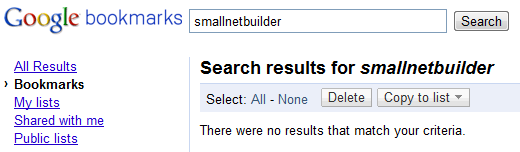
Chrome bookmarks have a web interface, but it's likely that the obvious will happen: Chrome bookmarks could be saved to Google Bookmarks. Jérôme Flipo noticed that the Google Bookmarks OneBox already includes Chrome bookmarks. I've tried to find SmallNetBuilder.com and Google's OneBox returned it even if it was starred in Chrome, not in Google Bookmarks.


Sunday, March 20, 2011

Google Chrome's Experimental New Tab Page for Touch Screens

A recent Chromium build added a new option to the about:flags page: an experimental new tab page. The updated new tab page is a work in progress and it's optimized for touch screens. Right now, it only includes the web apps you've previously installed, which can be organized in multiple home screens.

"The idea with this touch NTP is to focus (for now) on apps, and make it easy
to arrange them into pages. You can swipe/drag to switch pages, and press
and hold to lift an app and rearrange it," explains Google.


I found an interesting comment in one of Google's JavaScript files: "Note that, while the product portion of the touch NTP is designed to work just in the latest version of Chrome, this hack attempts to add some support for working in older browsers to enable testing and demonstration on existing tablet platforms. In particular, this code has been tested to work on Mobile Safari in iOS 4.2. The goal is that the need to support any other browser should not leak out of this file - and so we will hack global JS objects as necessary here to present the illusion of running on the latest version of Chrome."

{ via ConceivablyTech. Thanks, François Beaufort. }

Wednesday, March 16, 2011

New Chrome Logo

The latest Chrome Dev Channel release comes with a new Chrome logo that's more plain and boring, but looks better as a desktop icon. Even if not many people will switch to a different browser just because they don't like the new logo, Chrome lost some of its magic by switching to a visual identity that's no longer vibrant and picturesque. Here's the new Chrome icon:


... and the old Chrome icon:


There's also a new logo for Chromium, the open source browser that powers Google Chrome:

{ Thanks, Kuba, Stefan, Dani, Daniel and Cameron. }

Monday, March 14, 2011

Google Toolbar 8, Powered by Google Chrome

After Google released Chrome, Google Toolbar's development slowed down. That's because Google Toolbar is no longer the primary vehicle for adding browser features and Google mostly focused on improving Chrome.

Google Toolbar 8 is a completely new version of Google's add-on that was available as part of Google Labs. "Google Toolbar 8 is actually built and runs on top of the Google Chrome Frame platform. This means that Toolbar 8 will run more like a web app in that it can be customized and updated much more frequently and easily. It also means that Google Chrome Frame is installed at the time of Toolbar 8 installation," explains Google.


The new version of Google's toolbar only works in Internet Explorer right now and it doesn't include all the features that are currently available in the latest public version. Google included some new features: buttons for the most visited sites, Google Dictionary integration and Google Instant. "Google Toolbar displays up to seven of your most visited sites as buttons. Click on a button to go directly to its site. When you download the new Google Toolbar your toolbar will display buttons for Gmail, Google Calendar, Google Docs, Youtube, Google News, Google Reader and Google Tasks by default."

Saturday, March 12, 2011

Chrome 12 Will Drop Support for Google Gears

While most Chrome users have been upgraded to Chrome 10, Google is fixing the bugs from Chrome 11 and working on Chrome 12. A recent Chromium build made a significant change: Gears is no longer included in Google Chrome.


Gears is a browser plugin released by Google back in 2007, The initial goal was to add support for offline web apps, but the plugin added many other HTML5 features at a time when HTML5 wasn't a priority for most browsers. Google discontinued Gears last year to focus on "bringing all of the Gears capabilities into web standards like HTML5" and to implement them in Google Chrome. Features like geolocation, notifications, web workers, application caches are already available in Google Chrome, so it's probably the right time to stop bundling the Gears plugin.

"With all this now available in HTML5, it's finally time to say goodbye to Gears. There will be no new Gears releases, and newer browsers such as Firefox 4 and Internet Explorer 9 will not be supported. We will also be removing Gears from Chrome in Chrome 12," informs Google.

What's surprising is that important services like Gmail and Google Calendar still use Gears to work offline. Other services like Google Docs and Google Reader dropped offline support last year. Google promised that they will use HTML5 features implemented in browsers like Chrome or Firefox, but that hasn't materialized yet.


Tuesday, March 8, 2011

What's New in Chrome 10?

Google Chrome 10 is ready for primetime and it comes with a surprising number of new features. Here are some of them:

1. The Options dialog is now a web page that opens in a new tab. Chrome has one less modal dialog and the new Options page is better suited for netbooks. Another advantage is that each section of the Options page has a permalink that can be bookmarked.

Even if Chrome doesn't have too many customizable settings, there's a search box that lets you quickly find an option. Try searching for "cookies" and you'll notice that Chrome finds settings that aren't immediately obvious.


2. You can now change the default page zoom value. Go to the Options page and select "Under the hood" (or paste chrome://settings/advanced in the address bar) and change the "page zoom" value. The default value is 100%, but you can pick values like 120% or 144%, which are useful if you want to connect your computer to a TV.

3. The same section of the Options page lets you change the minimum font size. Click "customize fonts" and choose one of the values that are available for the minimum font size.

4. Synchronize passwords and use them from any computer, as long as you can install Google Chrome. The new option is not enabled by default and it requires your confirmation before saving your passwords to your Google Account. There's even an extra security feature that lets you choose a custom encryption passphrase, so that your passwords are safe even if someone guesses your Google Account password. For advanced features and cross-browser functionality, try LastPass.


5. Reorder the apps from the new tab page using drag and drop. This option was available for the frequently visited pages and you can now use it to change the order of your favorite apps.


6. A new version of V8, Chrome's JavaScript engine, includes a better compilation infrastructure codenamed Crankshaft. "By using aggressive optimizations, Crankshaft dramatically improves the performance of compute-intensive JavaScript applications - often by more than a factor of two! This will give users a faster and more responsive experience loading web pages and applications built with complex JavaScript."

7. Chrome 10 comes with hardware acceleration for Web videos. "Traditionally, web browsers relied entirely on the CPU to render web page content. With capable GPUs becoming an integral part of even the smallest of devices and with rich media such as video and 3D graphics playing an increasingly important role to the web experience, attention has turned on finding ways to make more effective utilization of the underlying hardware to achieve better performance and power savings. There's clear indication that getting the GPU directly involved with compositing the contents of a web page can result in very significant speedups. The largest gains are to be had from eliminating unecessary (and very slow) copies of large data, especially copies from video memory to system memory. The most obvious candidates for such optimizations are the <video> element and the WebGL canvas, both of which can generate their results in areas of memory that that CPU doesn't have fast access to," explains Google.

Test GPU acceleration for videos at YouTube's HTML5 site. Adobe Flash 10.2 also added full GPU acceleration for videos and YouTube is one of the sites that support this feature, so you can compare Flash 10.2 videos and HTML5 videos to see which version uses less processing power.

8. Chrome 10 for Windows finally sandboxes the built-in Adobe Flash plugin. This is one of the reasons why Google decided to bundle the plugin with Chrome.

9. If you didn't like Gmail's notification feature because it didn't work when you closed Chrome, you'll find it much more useful when Gmail's app adds support for background pages, a feature that's now available in Chrome. "Apps and extensions that use the new background feature can continue to run in the background — even if the user closes down all of Chrome's windows. Background apps will continue to run until Chrome exits. The next time Chrome starts up, any background windows that were previously running will also be re-launched. These windows are not going to be visible but they will be able to perform tasks like checking for server-side changes and pre-emptively loading content into local storage," explains Google.

When you install the first app or extension that supports backgrounding (like this one), Chrome adds a new icon to the system tray (Windows and Linux) and a new entry in the context menu of the Chrome icon from the Dock (Mac). The new icon and context menu entry let you go to a background app, open the task manger or the options page.


10. Chrome disables certain outdated plugins by default and provides an option to update to the latest version. Popular software like Adobe Reader, Java or Apple QuickTime have many security vulnerabilities that are frequently exploited in the wild because users don't install the versions that fix these issues.

Monday, February 21, 2011

Open Gmail's PDF Attachments in Google Docs Viewer

A recent Gmail update changed the "View" links for PDF attachments, but only if you use Google Chrome. Instead of opening PDF files using Google Docs Viewer, Gmail now uses the PDF plugin included in Google Chrome. Unfortunately, this makes it more difficult to save PDF files to Google Docs.

Here's a simple trick that lets you open a PDF attachment in Google Docs Viewer. Click "View" next to the attachment and edit the URL: replace "view=att" with "view=gvatt" in the address bar. Another option is to right-click "View", copy the URL, paste in the address bar and replace "view=att" with "view=gvatt".


Obviously, you can also disable the built-in PDF plugin. Just type about:plugins in the address bar and click "Disable" next to "Chrome PDF Viewer".

Sunday, February 20, 2011

7 Chrome Annoyances and How to Fix Them

Guest post by Shankar Ganesh

Google Chrome was released more than two years ago and it's the browser of choice for many people. Despite having won hearts for its speed and elegance, Google Chrome does have some minor flaws that you might want to fix. Here are some of them:

1. No confirmation when closing multiple tabs

Google Chrome does't show a warning when you close a window with multiple tabs. If you accidentally close Chrome windows, you can install Chrome Toolbox. The next time you close many tabs, you'll at least get a warning.


2. Basic history page

Google Chrome's history page is pretty basic and you can't restrict the list to a certain time interval.

The History 2 extension comes to the rescue by allowing you to sort web pages based on the day/week you visited them. History 2 allows you to delete multiple items from your history page at the click of a button – something that's not possible by default.


3. Missing image properties

There's no way to quickly examine an image when you're in Chrome. Fortunately, you can install Image Properties Context Menu, an extension that lets you right-click on an image and find information about the image size, location, dimensions and more.


4. No support for feeds

Chrome simply doesn't recognize RSS feeds and all you get is a page with gibberish text. If you install the RSS Subscription extension developed by Google, you can quickly subscribe to any feed using Google Reader, iGoogle, Bloglines or My Yahoo.


5. You can't send a web page by email

While other popular browsers allow you to quickly send any web page you're viewing by email, such an option is nowhere to be found in Google Chrome.

Worry not, because you can create a simple Javascript bookmarklet to open your default email program with the current URL. If Gmail is what you use, you can alternatively install the Send from Gmail extension to send the web page to Gmail.

6. No session manger

Closing Google Chrome and reopening it does not restore previously opened tabs. In order to do that, go to the Options dialog and enable Reopen tabs that were open last.

If you want advanced session saving options like the ability to create multiple sessions, try the Session Buddy addon for Google Chrome.

7. You can't switch to a tab from the Omnibox

Firefox 4 lets you switch to any open tab by typing relevant words into the address bar. If you'd like to see a similar feature in Chrome, install the Switch To Tab extension.

The next time you have too many open tabs, just type sw <TAB> followed by some words from the page. Hitting Enter switches to the tab that's listed as the first match.


Have you ever wanted to switch from Chrome to another browser because of a missing feature? Did you mange to find a workaround or an extension that adds the missing feature?


Shankar is a blogger and an engineering student from India who writes tech tips at KillerTechTips.com. His latest articles helped users block Facebook and improve productivity in Google Chrome. This post was inspired by an article written by Amit Agarwal.

Thursday, February 17, 2011

Gmail Opens PDF Attachments Using Chrome's Viewer

If you use Google Chrome and you haven't disabled the built-in PDF plugin, you can now open PDF attachments from Gmail using your browser's viewer. Just click "View" next to the attachment and you'll notice that the PDF file opens faster and it looks much better.


If you disable the plugin or you use a different browser, Gmail continues to open PDF attachments using the Google Docs Viewer. Maybe Gmail should also detect Adobe Reader's plugin and use it instead of the online PDF viewer.

Google Apps blog informs that this feature will be available in Google Apps next week. You can get it faster by enabling "pre-release features" in the Administrator Control Panel.

Thursday, February 3, 2011

9 Things to Try in Google Chrome 9

Google Chrome 9 is now available, two months after the previous release and two weeks later than Google's self-imposed deadline. Here are 9 features you should try in this new version:

1. WebGL is now enabled by default in Google Chrome and you can try the 3D web apps from Google's gallery. Don't miss Body Browser, a Google Earth for the human body, and the WebGL Aquarium.


2. Google Instant is now integrated with Chrome's address bar, but this feature is not for everyone because it automatically loads web pages as you type. It's disabled by default, so you need to enable it by checking "Enable Instant for faster searching and browsing" in the Options dialog.

3. Cloud Print can be enabled from Options > Under the hood if you use Windows. This features lets you print from devices that can't communicate directly with printers. The first two applications that use Cloud Print are the mobile versions of Gmail and Google Docs.

4. Chrome supports WebP files. WebP is a new image format created by Google whose main advantage is that it offers better compression. "Our team focused on improving compression of the lossy images, which constitute the larger percentage of images on the web today. To improve on the compression that JPEG provides, we used an image compressor based on the VP8 codec that Google open-sourced in May 2010." Here's an example of WebP image.

5. Right-click on an extension button next to the address bar and select "Hide button". When you change your mind, go to Tools > Extensions and click on "Show button" next to the corresponding extension.


6. Create desktop shortcuts for your web apps: right-click on an app in the new tab page and select "create shortcut". You can also add shortcuts to the Start Menu and the Quick Launch Bar if you use Windows.


7. Launch web apps in a new window. Right-click on a web app and select "open as window".

8. Install extensions that add custom menu options to images. For example, install Clip It Good to upload any image from a web page to Picasa Web Albums.


9. Install extensions that use the Omnibox API to associate keywords with new search engines. For example, install the DOI Resolver extension and type doi 10.1205/096030802760309188 in the address bar. The extension added a new search engine and associated it with the keyword doi.

Tuesday, January 25, 2011

Chrome's New Sad Tab Page

The latest Chromium builds include a new sad tab page that replaces the famous "aw, snap!" message with "he's dead, Jim!". The message continues: "Something caused this page to be killed , either because the operating system ran out of memory, or for some other reason. To continue, press Reload or go to another page." To see the page, just type about:kill in the address bar after opening a new tab.

"He's dead, Jim!" is a catchphrase used by Leonard H. McCoy, a character from Star Trek. "The line has entered popular culture as a general metaphor, with uses as diverse as descriptions of an unresponsive electronic circuit, an example of how to add an audio file to function as an alert sound in a computer system, and an illustrative quote regarding how to know if one's opponent has been destroyed in an action hero game."


Here's the old sad tab page:


{ Thanks, Chen. }

Gmail Cloud Print

Google has enabled Cloud Print in Chrome's Dev Channel builds for Windows, but the only option available was to print a test page. Now you can use Google Cloud Print from Gmail's mobile web app for Android and iPhone. The integration lets you print attachments without having to use a full-fledged computer. Since there's no printer with native support for Google Cloud Print, you still need a computer running Google Chrome.

Cloud Print is enabled by default in Chrome Dev Channel and it can be manually enabled in the other builds by typing about:flags in the address bar, clicking "Enable" next to "Cloud Print Proxy" and restarting the browser. To be able to use it, you first need to go to Options >> Under the hood >> Google Cloud Print and log in with a Google account.


Update: According to Google, this feature is also available in Google Docs. "This feature will be rolling out for English speaking users in the US and will work on most phones that support HTML5, such as devices running Android 2.1+ and iOS 3+."

Wednesday, January 19, 2011

Google Chrome and the Beginning of Time

A recent Chromium build updated the message used for the "clear browsing data" section. The most impressive option lets you "obliterate the following items from the beginning of time". It's less boring than "clear browsing data from this period: everything", but users may need to use a dictionary and to get a sense of humor.


In other news, the tabbed settings page is now the default option in Chromium and this feature will probably be enabled in Chrome 10. The new settings page comes with a search box that lets you quickly find an option (this feature would be much more useful in Firefox, Opera or Internet Explorer) and a default page zoom option.

Tuesday, January 11, 2011

Google Chrome to Drop Support for H.264

Chromium's blog informs that Google Chrome will drop support for H.264 in the coming months and will only support WebM (VP8) and Theora codecs.
We expect even more rapid innovation in the web media platform in the coming year and are focusing our investments in those technologies that are developed and licensed based on open web principles. To that end, we are changing Chrome's HTML5 <video> support to make it consistent with the codecs already supported by the open Chromium project. Specifically, we are supporting the WebM (VP8) and Theora video codecs, and will consider adding support for other high-quality open codecs in the future. Though H.264 plays an important role in video, as our goal is to enable open innovation, support for the codec will be removed and our resources directed towards completely open codec technologies.

Google decided to pick sides, much like Mozilla and Opera, in an effort to encourage developers to use WebM. Right now, the only important website that uses WebM is YouTube, Google's video sharing service. Internet Explorer, Safari and iOS devices are unlikely to support WebM, while hardware acceleration and Flash support are expected later this year.

John Gruber thinks that "this is just going to push publishers toward forcing Chrome users to use Flash for video playback — and that the video that gets sent to Flash Player will be encoded as H.264". He also finds it ironic that Google Chrome bundles Adobe's proprietary Flash plugin, which is a great software for playing H.264 videos.

VP8 has a long way to go before becoming the codec of choice for Web videos and Google decided to make it more popular by dropping support for the competing codec from its browser. Last year, Andy Rubin said that sometimes being open "means not being militant about the things consumer are actually enjoying," but that's not the case here.

Tuesday, January 4, 2011

Voice Search for Google Chrome

Voice Search is a Google Chrome extension that lets you search using your voice. It's not developed by Google, but it uses an experimental Chrome feature called form speech input. The feature is enabled by default in the dev channel builds, but it can be manually enabled by adding a command-line flag.

"Voice Search comes pre-loaded with the following default services: Google, Wikipedia, YouTube, Bing, Yahoo, DuckDuckGo and Wolfram|Alpha. You can also add your own user-defined search engines. It also integrates a speech input button for all websites using HTML5 search boxes. This extension requires a microphone. Speech input is very experimental, so don't be surprised if it doesn't work. Also, try to speak clearly for best speech recognition results," suggests the author.


Speech recognition is limited to English and it doesn't work very well, but this extension is a good way to test a feature that will be enabled in the future Chrome releases. If you have a website, it's quite easy to add support for speech input, but it may take a while until Google's Speech Input API specification becomes a standard and all browsers implement it.

{ Thanks, Silviu. }

Monday, December 20, 2010

Google Chrome's Bundled Games

The first Chrome 10 Dev Channel build bundles two HTML5 games: Poppit and Entanglement. The two games are added to the new tab page even if you've previously installed other apps.

Some users will probably be surprised to see two games they didn't install, so Google should inform users that the games were automatically installed. Chrome's source code makes it clear that Poppit and Entanglement are installed for all operating systems, except for Chrome OS. Probably a better idea would be to recommend some apps based on the browsing history.


{ Thanks, Dani. }

Thursday, December 16, 2010

Change Default Zoom Level in Google Chrome

Google Chrome 9 lets you change the default zoom level for all pages, but this feature is more difficult to find because it's only available in the tab-based settings page. Here's how to change the zoom level:

1. Make sure that you use Google Chrome 9 (beta, dev), Google Chrome 10 (Canary) or a recent Chromium build. For example, you could type about: in the address bar.
2. Type about:flags in the address bar.
3. Click "Enable" next to Tabbed Settings and then click the "Restart" button at the bottom of the page. This will restart the browser.
4. Click the wrench menu and select Options.
5. Select Under the hood and pick a value from the "Page zoom" drop-down.


If you don't like Chrome's tabbed settings interface, you can go back to the standard settings dialog by disabling Tabbed Settings from about:flags. You won't lose the default zoom level, but you'll have to switch to the tabbed interface if you want to change it.

Bonus tip: Another option you can change from the tabbed settings interface is minimum font size (Under the hood > Web Content > Customize fonts > Minimum font size).

{ Thanks, Sterling. }

Chrome 9 Sandboxes Flash and Adds WebGL Support

Google Chrome 9 beta is now available and, unlike the previous two versions, it comes with a lot of new features.

The built-in Adobe Flash plugin is now sandboxed, just like Chrome extensions and tabs. "The sandbox adds an additional layer of protection to further guard against malicious pages that try to hijack your computer or steal private information from your hard drive. Based on this groundwork in the beta, we'll be bringing the sandboxed Flash Player to Chrome for Mac and Linux in future releases as well," explains Google. Right now, the sandboxed Flash plugin is only available if you use Windows.


Google Chrome 9 enables WebGL support by default. "WebGL is a new web technology that brings hardware-accelerated 3D graphics to the browser without installing additional software" and it can be used to create cool applications like Google Body Browser, Field, Aquarium and more.


Chrome doesn't have many opt-in features. The latest feature that's not enabled by default is Instant Search, an extension of Google Instant that previews search results as you type and lets navigate to your favorite pages with only a few keystrokes. It might be useful to go to Gmail by just typing "m" in the address bar, but this feature could also be annoying if you actually wanted to visit miniclip.com. "The Instant feature can help you search and browse faster on the web by showing search results and webpages in the browser window as you type in the address bar, even before you press Enter. If you don't see the results you want, just keep typing and the results dynamically update," informs Google.

To enable Chrome Instant, go to Options > Basic and check "Enable Instant for faster searching and browsing".


Chrome Instant is not just annoying, it's also buggy. For example, Chrome's suggestions sometimes cover Google's first results.


Another new feature is the integration with Google Cloud Print, but there are no web apps or mobile applications that support this technology.

If you want to hide the button added by a Chrome extension, you can do it by right-clicking on the button and selecting "Hide button". When you change your mind, go to Tools > Extensions and click on "Show button" next to the corresponding extension.


You can now create desktop shortcuts to your favorite web apps from the new tab page and open web apps in a new window.

To install Chrome 9 beta, visit this page. If you use Chrome 8 beta, open the About dialog to manually update.